

The Medications tab
The Medications tab shows all of your medications at a glance. Each card displays the medication name, its form and strength, and a summary of when it is taken. Tap any card to open the editor and change its details.


Adding a medication
Tap the + button in the top-right corner of the Medications tab to open the Add Medication screen. Work through the fields from top to bottom, then tap Save.
Step 1 — Name and form
- Name — Start typing the medication name as it appears on the packaging or prescription label. PillBox suggests matching Australian medicines as you type — pick one and the exact brand, form, strength, and active ingredients fill in automatically from the official PBS and AMT data (see Find medicines with PBS search and AMT data). If your medicine isn't suggested — vitamins, private prescriptions, and over-the-counter products often aren't — simply type the full name and continue manually.
- Form — Tap the form selector directly below the name to choose the delivery method. A picker scrolls through options including:
- Tablet — a solid pressed tablet
- Capsule — a gelatin shell containing powder or liquid
- Liquid — a syrup, suspension, or solution measured in mL
- Injection — administered by syringe
- Drop — eye drops, ear drops, or a pipette
- Inhaler — a puffer or breath-actuated device
- Patch — a transdermal adhesive patch
- Other — anything not listed above
The form you choose determines which unit label appears next to the quantity field (for example, 1 tablet, 2 capsules, 5 mL).

Step 2 — Choose an icon and colour
Every medication gets a coloured icon that appears on its card in the Today tab, the Medications tab, and on the lock-screen Live Activity. Giving each medication a distinct icon and colour lets you identify it at a glance — especially useful when managing several medications at once.

Shape
A scrollable row of icon shapes appears at the top of the colour section. Available shapes include pills, a capsule, a syringe, a bottle, a drop, an inhaler, and more. Swipe the row left to see all options. Tap a shape to select it — the preview tile above updates immediately.
Colour (icon)
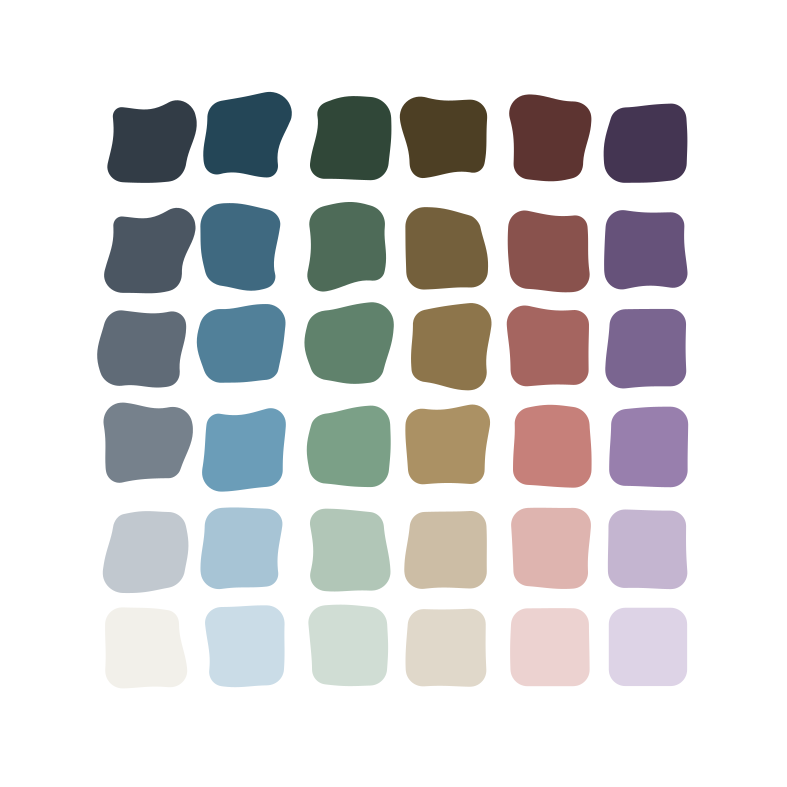
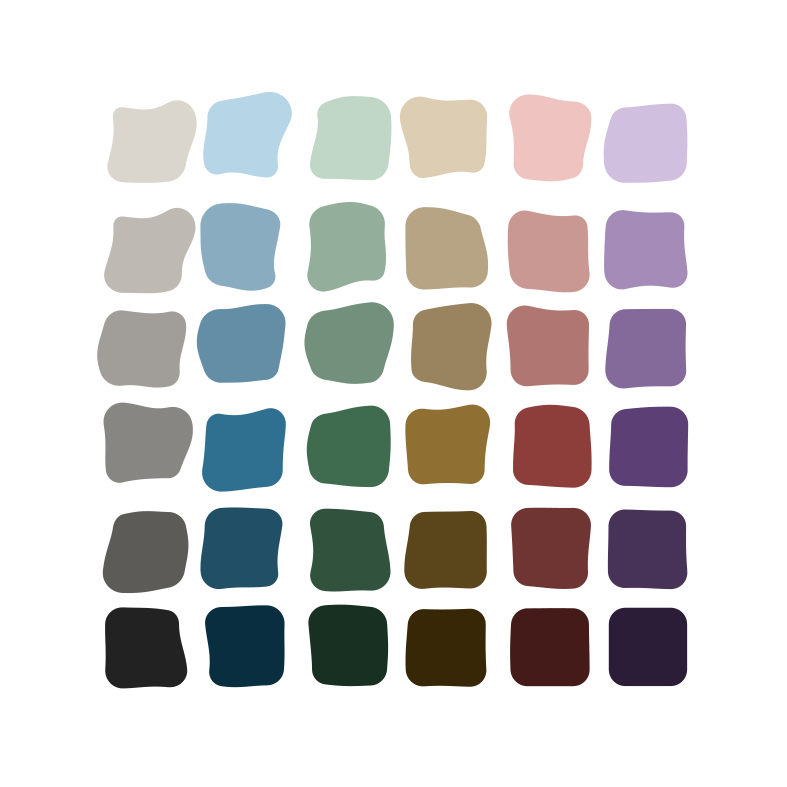
Below the shapes is a row of eight identity colours — Blue, Red, Green, Orange, Purple, Gold, Berry, and Indigo. Tap one to set the icon's colour. This bold colour is used on the medication's icon tile everywhere: the Today and Medications tabs, the home-screen widgets, and the lock-screen Live Activity.
Card (background tint)
A second colour row shows softer versions of the same eight colours. This sets the background tint of the medication's card in the Today and Medications tabs and on the widgets.
Why this matters: When you take several medications at similar times, distinct colours let you match a card in the Today tab to the lock-screen reminder at a glance — without reading the name.
Prefer urgency over identity? By default the Today tab colours each card by its medication. In Settings → Colour cards by you can switch to colouring by status instead — overdue, upcoming, taken — if urgency matters more to you than which medication is which. The icon tile keeps its identity colour either way.
Step 3 — Set up dose schedules
A dose card defines when you take a medication and in what amount. One medication can have multiple dose cards — for example, a Morning dose at 08:40 and an Afternoon dose at 12:30, each with its own time, strength, quantity, and reminder sound.
Under Dose Schedule, tap + Add Dose to create the first dose. Tap an existing dose card to open and edit it. The − button on the right removes that dose.
Each dose card is fully independent. You can have different strengths or different sounds at different times of day, all under a single medication.
Schedule types
Inside the dose editor, choose one of three repeat types from the Repeat row at the top: Daily, Specific Days, or As Needed.
Daily
The dose is scheduled at the same time every day without exception.
- Tap Daily in the Repeat row (it is selected by default for new doses).
- Tap the Time field and use the scroll picker to set the exact hour and minute.
- Under Strength, type the amount of active ingredient (for example,
5for 5 mg). Tap the unit label below to change the unit (mg, mcg, IU, mL, etc.). - Under Quantity, type the number of units you take at this dose (for example,
1for 1 tablet,2for 2 capsules). - Under Reminders, toggle Dose reminders on to receive a notification when the dose is due.
- If reminders are on, tap Sound to choose the notification sound for this dose.
- Tap Done to save the dose and return to the medication editor.

Specific Days
The dose is scheduled only on the days of the week you choose. Use this for medications taken every other day, on a fixed weekly pattern (for example, methotrexate every Monday, or a flea treatment every Sunday), or on any subset of days.
- Tap Specific Days in the Repeat row. A row of day buttons — M Tu W Th F Sa Su — appears immediately below.
- Tap each day you want the dose scheduled. Selected days are highlighted. Tap again to deselect.
- Set the Time, Strength, Quantity, and Reminders the same way as a Daily dose.
- Tap Done to save.
PillBox only generates a dose entry for the days you have selected — no card appears in the Today tab on unselected days.

As Needed (PRN)
For medications without a fixed schedule — pain relief, rescue inhalers, antihistamines, sleep aids, and anything else taken only when required.
- Tap As Needed in the Repeat row.
- The time picker and reminder fields disappear. A note reads: "Logged manually from Today. No scheduled time or reminders."
- Set the Strength and Quantity so each logged dose has the correct details recorded in your History.
- Tap Done to save.
Because there is no scheduled time, PillBox will not send reminders or show a Live Activity for as-needed doses. To log a dose, tap the Take button on the medication's card in the As Needed section of the Today tab.

Reminders and notification sounds
Each Daily or Specific Days dose can have its own reminder notification with its own sound. This means you can give each medication a distinctive audio cue so you always know which one is due — without unlocking your phone or reading the notification.
To turn reminders on for a dose:
- Open the dose editor (tap the dose card in the medication editor).
- Toggle Dose reminders on.
- Tap Sound to open the sound picker.
- Preview each sound by tapping the ▶ play button next to it.
- Tap the sound name to select it. A checkmark appears on the active selection.
- Tap Done to close the picker, then Done again to save the dose.

PillBox includes four pharmacy-themed notification sounds, plus the system default:
| Sound | Character |
|---|---|
| System Default | Uses whichever notification sound is set in iPhone Settings |
| Big Pill Shake | A deep, rattling shake of a pill bottle — hard to miss |
| Pill Rolling with Whistle | Tablets rolling with a sharp whistle — good for urgent doses |
| Pill Pop | A single crisp pop — subtle and unobtrusive |
| Pill Rolling | A gentle rolling sound — softer than the whistle version |
Apply reminder settings to all doses
The Apply reminder settings to all doses toggle (visible in the dose editor when reminders are on) copies the current dose's reminder configuration — on/off state and sound choice — to every other dose card on the same medication. Use this when you want all your doses to use the same sound without editing each one individually.
Setting a start date and end date
The Dates section appears near the bottom of the Edit Medication screen, below the Dose Schedule.

Start Date — The date you began (or will begin) taking this medication. PillBox uses this to determine which days fall within scope. No doses are generated before the start date.
End Date — Tap the Set end date toggle to enable it, then tap the date field to pick the final day using the date picker. PillBox generates doses up to and including the end date, then stops automatically. No further notifications are scheduled after this date.
When to use an end date: Set one for any medication with a defined course length — antibiotics (for example, 5 or 10 days), a steroid taper, post-surgery pain medication, or a trial prescription. Leave the end date off for ongoing medications like daily vitamins, blood pressure tablets, or supplements.
Multiple doses per medication
One medication can have more than one dose card. This covers common scenarios:
- Split doses across the day — Dexamphetamine at 08:40 (Morning) and 12:30 (Afternoon), both 5 mg.
- Different strengths at different times — 10 mg in the morning, 5 mg at noon.
- Mixed schedules — one daily dose plus a weekly supplemental dose on a specific day.
To add a second dose, scroll to Dose Schedule in the medication editor and tap + Add Dose. Configure the new dose and tap Done. Each dose card appears as a separate row in the Today tab with its own Take and Skip buttons, and generates its own independent reminder notification.
Saving your medication
- New medication — tap Save (top right) once all fields are filled in.
- Existing medication — the button reads Update. Tap it to apply changes. PillBox immediately rebuilds the dose schedule from today forward and reschedules all reminder notifications.
Dose statuses
Every scheduled dose has one of four statuses:
| Status | What it means |
|---|---|
| Pending | Not yet actioned — the dose is due or upcoming |
| Taken | You marked it as taken |
| Skipped | You chose to skip this dose |
| Missed | The cut-off time passed without any action; PillBox stopped sending reminders |


How long PillBox waits before marking a dose as Missed is configurable in Settings under Stop & mark missed after. The default is 4 hours after the scheduled dose time.
